
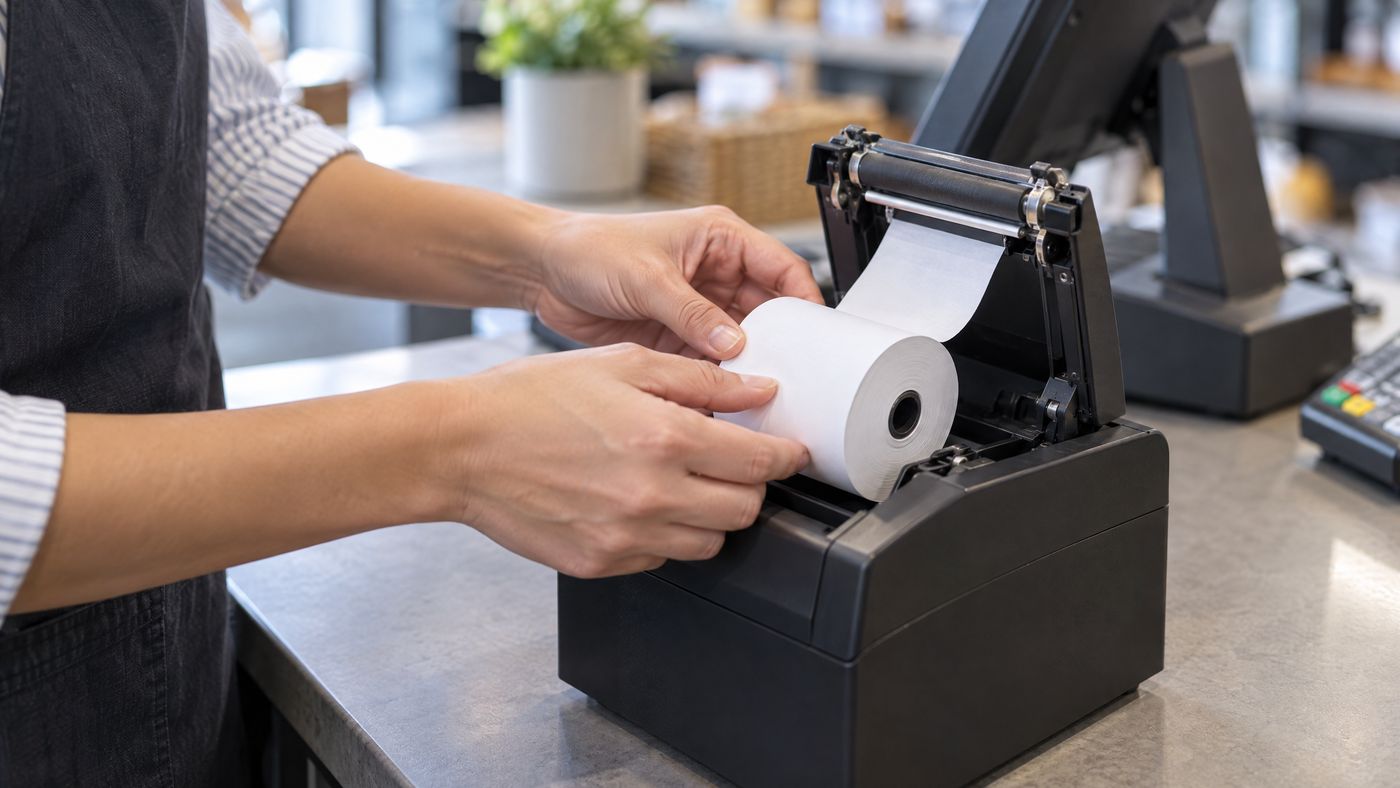
The receipt printer completes a visible part of checkout. The Epson TM-T88VII is a thermal POS printer, but its speed and connections depend on the configuration. Plan around the entire transaction, not the printer alone.

Follow the receipt cycle
- Complete the sale. POS software finalizes the transaction and prepares receipt details.
- Send the print job. The system sends it through a supported connection, such as built-in USB or Ethernet.
- Print on thermal paper. Heat creates text on the coated roll, so routine printing needs no ink or toner.
- Finish the handoff. The customer receives a paper record. A connected cash drawer may also open when the setup supports it.
Speed note: Epson lists up to 500 mm/s with 80 mm media and specified PS-190 or PS-180 power supplies. Other configurations default to 450 mm/s. So, check the exact model and power supply.
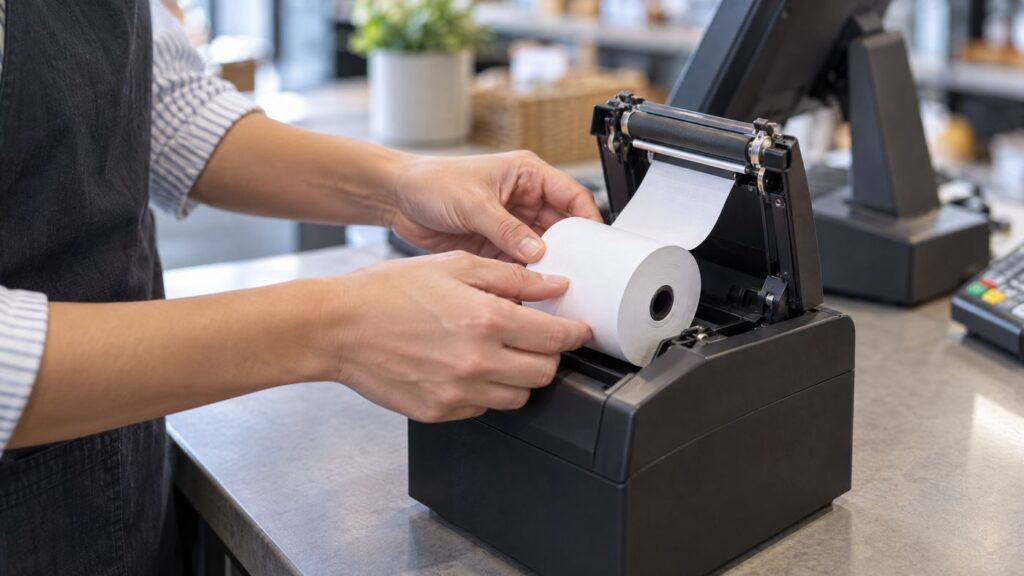
Preflight before installation
- Confirm the POS app, operating system, driver, and connection support the exact printer configuration.
- Choose the paper width and receipt layout your system uses.
- Check counter space, cable access, paper storage, and any cash-drawer connection.
For comparison, see the Epson TM-m30III printer guide. The Star mC-Print3 setup guide covers another model-dependent thermal option. For ribbon-based kitchen and bar printing, read the Epson TM-U220 maintenance article.
Consider the whole merchant setup
A printer is one piece of checkout. The Direct Processors’ services page outlines broader merchant-service options for businesses comparing POS and payment solutions.Shift-ready outcome: each completed sale should produce the right receipt without staff stopping to troubleshoot paper, drivers, or connections.
4 Replies to “Epson TM-T88VII: What to Know About Modern POS Receipt Printing”
Comments are closed.