
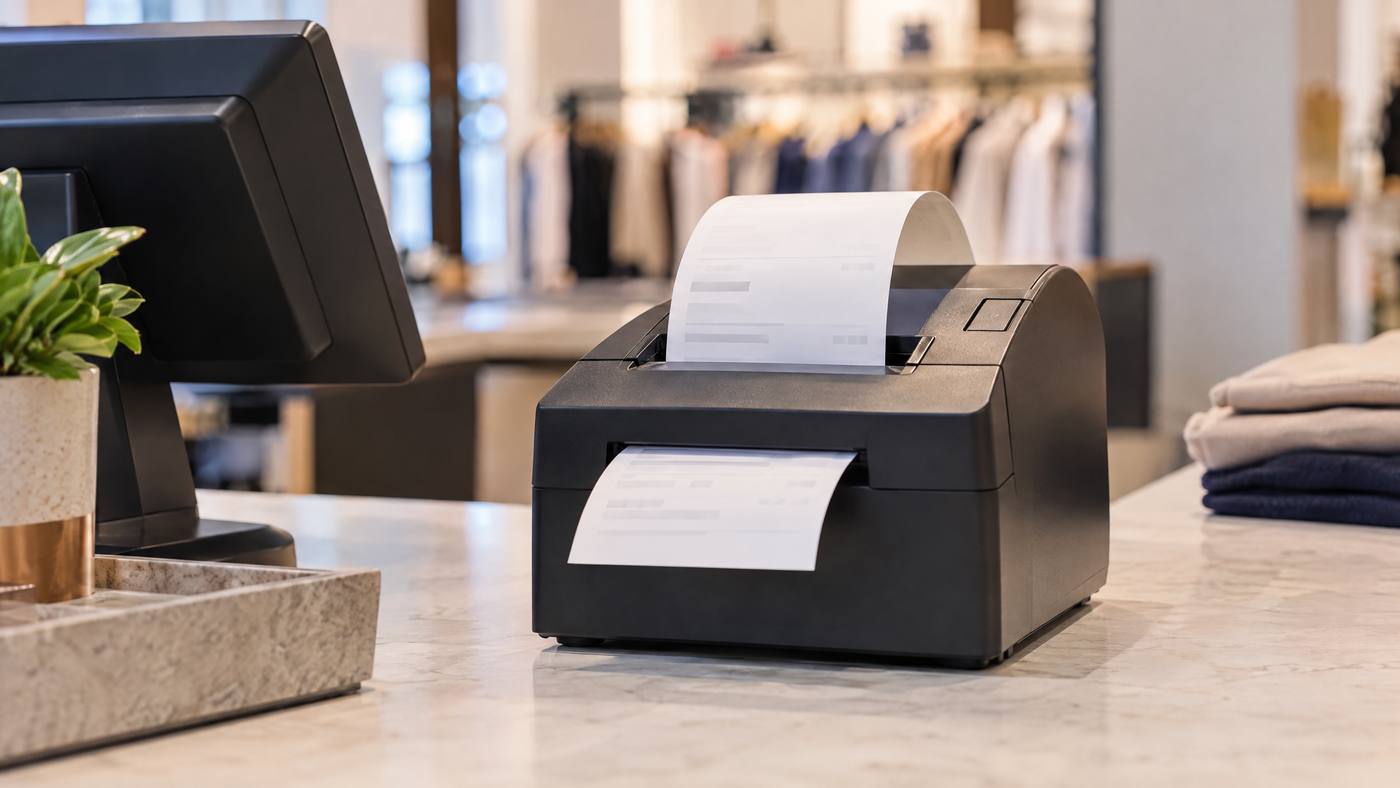
Need more than a customer receipt? The Epson TM-H6000V can handle several print jobs at one POS counter. First, it uses heat to print receipts. Then, its impact printer handles slips and endorsements. Some models also read MICR data from checks.
Match each job to the right print path
| POS job | How the printer handles it |
| Customer receipts | It uses heat to print on receipt paper. |
| Slips and forms | It uses impact printing on supported paper. |
| Checks | Some models read MICR data. Compatible setups can also print endorsements. |
| Receipt codes | It prints supported barcodes and QR codes. |
Follow the print job
1.The POS creates the document. The software adds the sale details and layout.
2.Next, the system sends the job. A USB, Ethernet, or other supported link carries it to the printer.
3.Then, the printer picks a print path. The receipt unit uses heat. The slip unit uses impact printing.
4.Finally, staff check the page. They make sure the text is clear before they complete the transaction.

Check these details before setup
•First, confirm the model, POS software, operating system, and connection.
•Also, match the receipt roll and slip paper to the printer.
•Next, check whether your model reads checks or prints endorsements.
•Finally, measure the counter and leave room for both paper paths.
For thermal receipt printing, see Local POS Broker’s Epson TM-T88VII guide. For impact-printer care, read its Epson TM-U220 maintenance guide.
Explore broader merchant services
A printer is only one part of a POS setup. For more options, visit The Direct Processors’ services page, which describes several merchant services.
Before you install the printer, ask your POS provider to test a receipt, a slip, and any check features your model offers.
One Reply to “Epson TM-H6000V: One Printer, Multiple POS Jobs”