
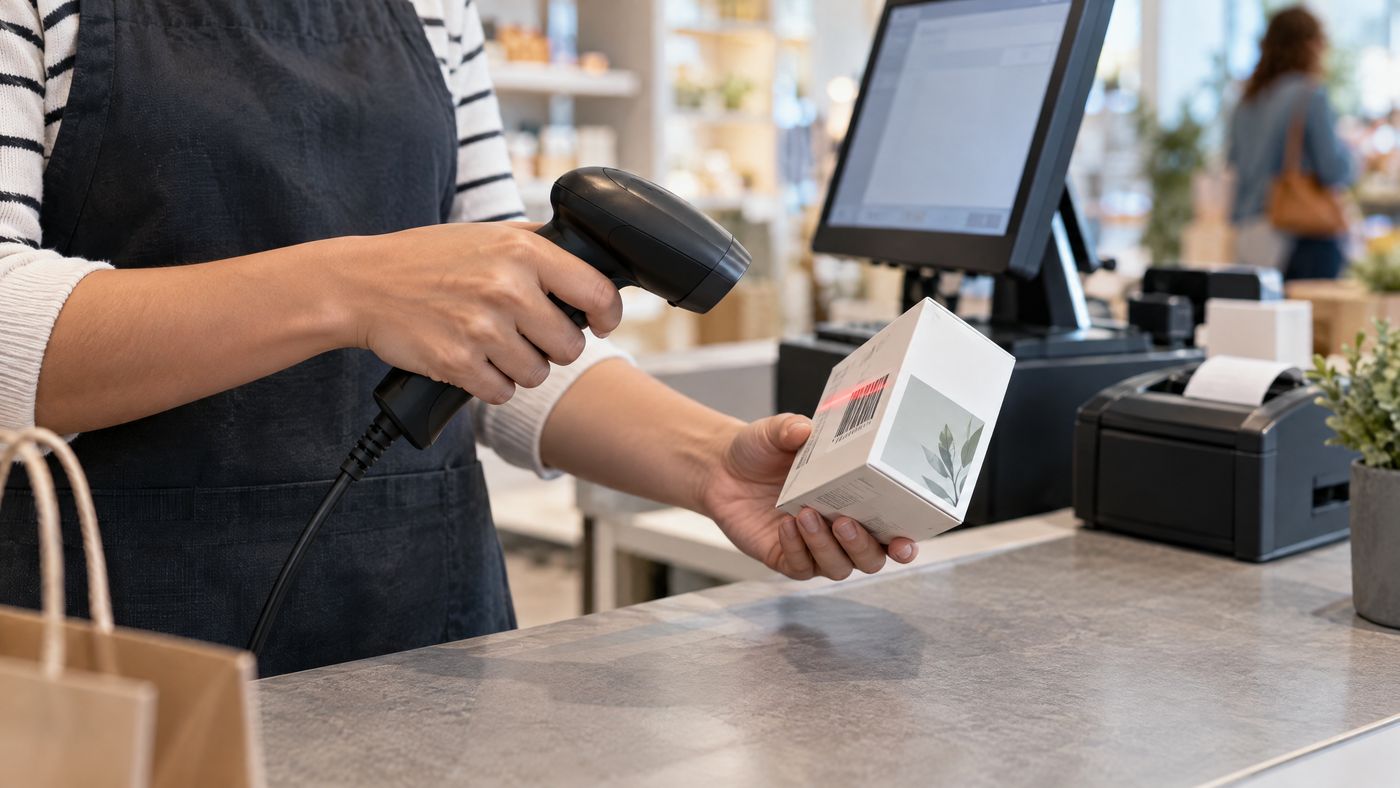
A checkout scanner should match the codes your customers bring to the counter. The corded Zebra DS2208 reads supported 1D and 2D barcodes, including UPC/EAN, QR, Data Matrix, and PDF417.
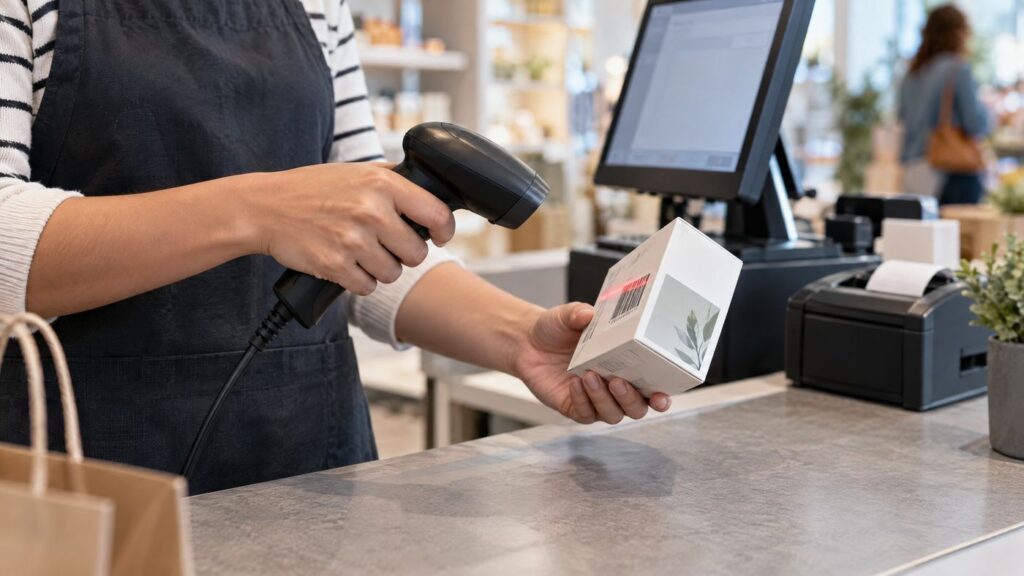
The scan path
1.Present the code. Aim the handheld scanner at a printed label or supported digital code.
2.Capture and decode. The imager converts the code into barcode data.
3.Match the item. POS software uses that data to find the product, coupon, or other record.
4.Continue checkout. Staff review the cart and take payment through the POS workflow.
The scanner reads the code; the POS decides what that code means. Therefore, test each barcode type with your actual software.
Where 2D scanning can help
•Read supported QR codes from product labels or mobile displays.
•Scan digital coupons or loyalty codes when the POS accepts them.
•Keep a familiar handheld workflow while supporting more than linear barcodes.

Compare the scanning style
The Honeywell Voyager 1450g guide covers another handheld imager. If you only need 1D codes, compare the Datalogic QW2120. For counter-based, hands-free scanning, see the Honeywell Orbit HF680 guide.
Before connecting it
•Confirm the POS supports the DS2208 and required barcode formats.
•Check the exact host interface and cable; compatible setup depends on the POS.
•Remember the DS2208 is corded. Consider a cordless model if staff need to move freely.
•Test printed and digital codes used in daily transactions.
For broader payment and merchant-service options, The Direct Processors’ services page outlines additional solutions for businesses.
Choose the DS2208 when your POS needs a corded handheld scanner for supported 1D and 2D codes and confirm the full setup before rollout.
4 Replies to “Zebra DS2208: 2D Barcode Scanning for Modern POS Systems”
Comments are closed.