
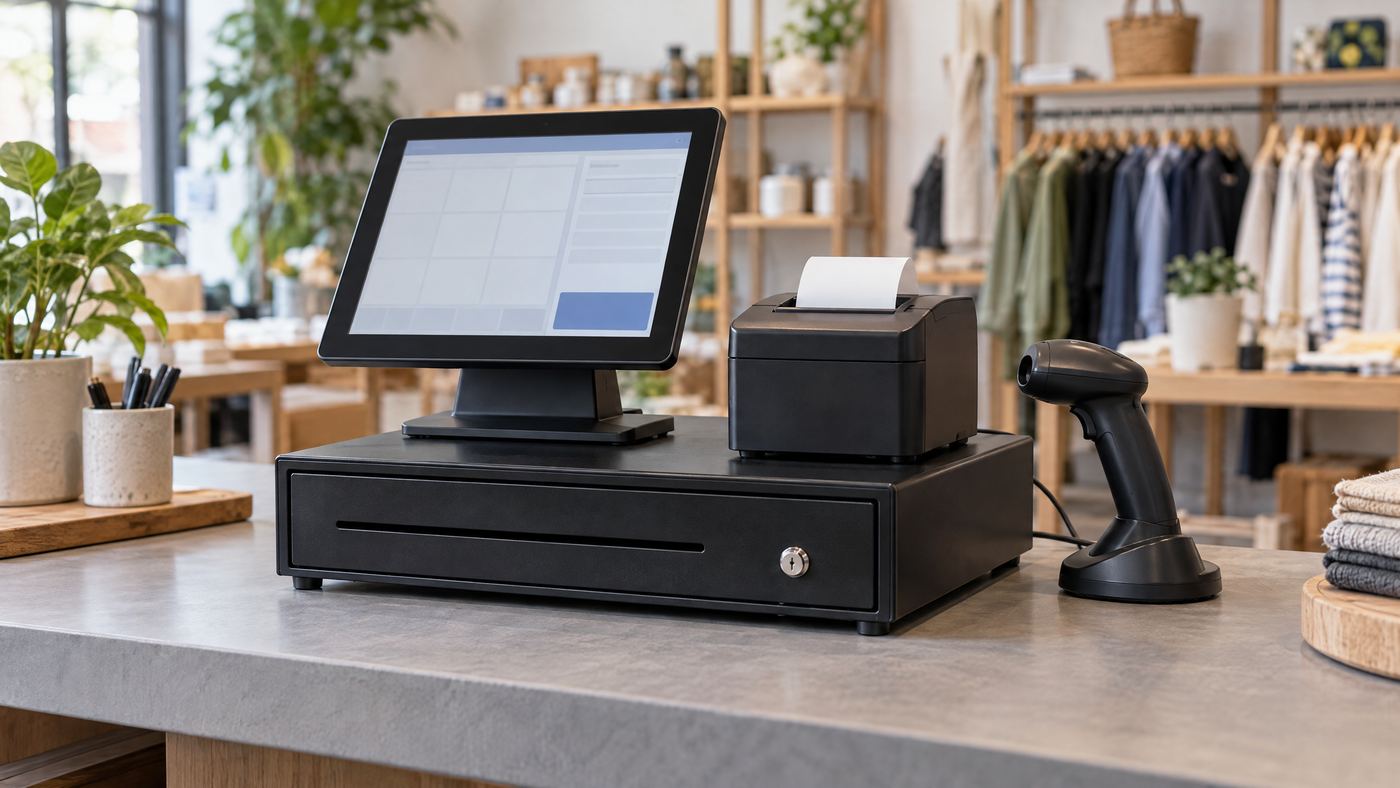
Build the checkout around the way the drawer opens and the way staff take payment. The APG Vasario stores cash; POS software, printer, scanner, and payment terminal handle other steps. Match their connections before buying.
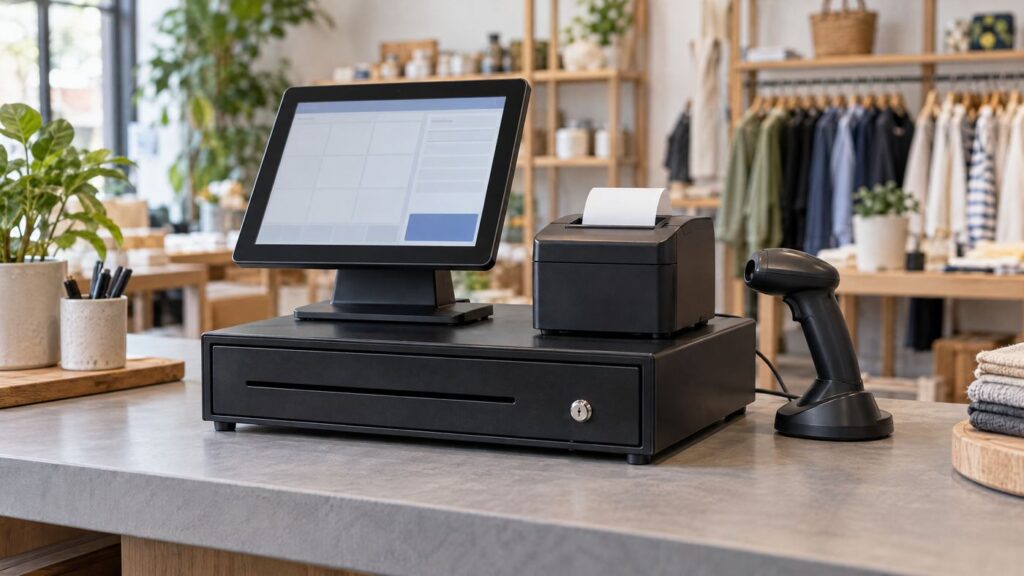
Build the station in four layers
- POS terminal and software. Add products and total the sale. Confirm the POS can send a drawer-open command when needed.
- Receipt printer. Some setups use the printer’s drawer-kick port. Match its voltage, pinout, interface, and cable to the exact drawer model.
- Scanner and payment terminal. The scanner enters items; the terminal handles electronic payments. Cash still follows a separate drawer workflow.
- APG Vasario drawer. Choose a compatible interface and till, then place it where staff can reach it without crowding the counter.
For applicable 24V printer-driven setups, APG specifies its 320 MultiPRO interface. Printer pinouts and cables can differ, so verify the part number and connection before setup.

Quick compatibility checks
- Confirm the APG model, interface, and required cable.
- Check that the POS software and receipt printer support drawer opening.
- Measure the counter and test the cash till, receipt, and payment flow.
For the connected equipment, see Local POS Broker’s Star TSP143IV receipt-printer guide, Zebra DS2208 scanner guide, and Verifone V400m payment-terminal guide.
Cash sale: scan items → total the sale → open the drawer if the POS connection supports it → take payment and give change. For a card sale, the payment terminal handles the electronic transaction.
Consider broader merchant services
A cash drawer is one part of checkout. The Direct Processors’ services page outlines broader merchant services for businesses comparing POS and payment options.
First-sale rehearsal: Run one cash sale and one card sale. Check that the correct step opens the drawer, the receipt prints, and each payment appears in the POS record.