
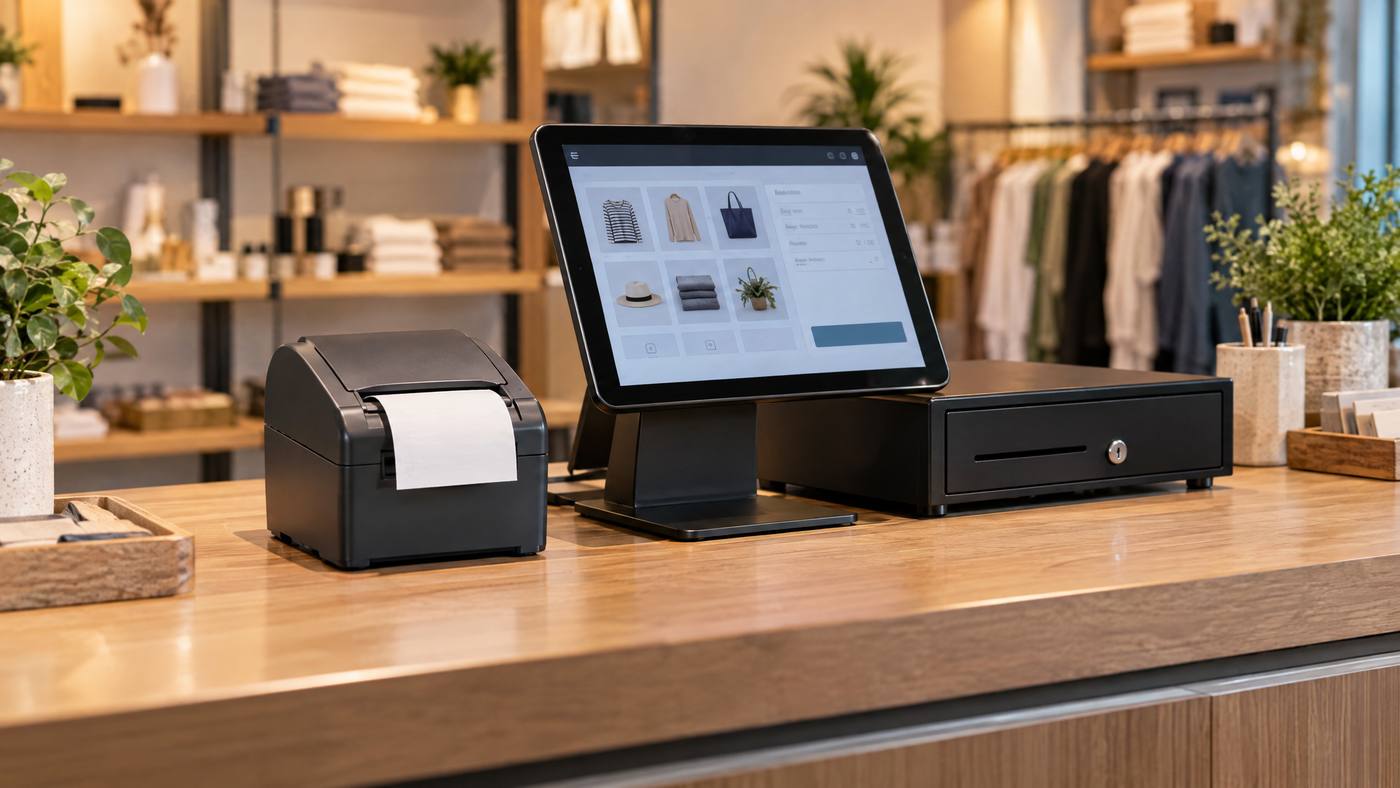
Quick overview: The mC-Print3 is a compact 3-inch thermal receipt printer. It can connect to a computer, tablet, or compatible cloud POS. However, ports and features vary by model.
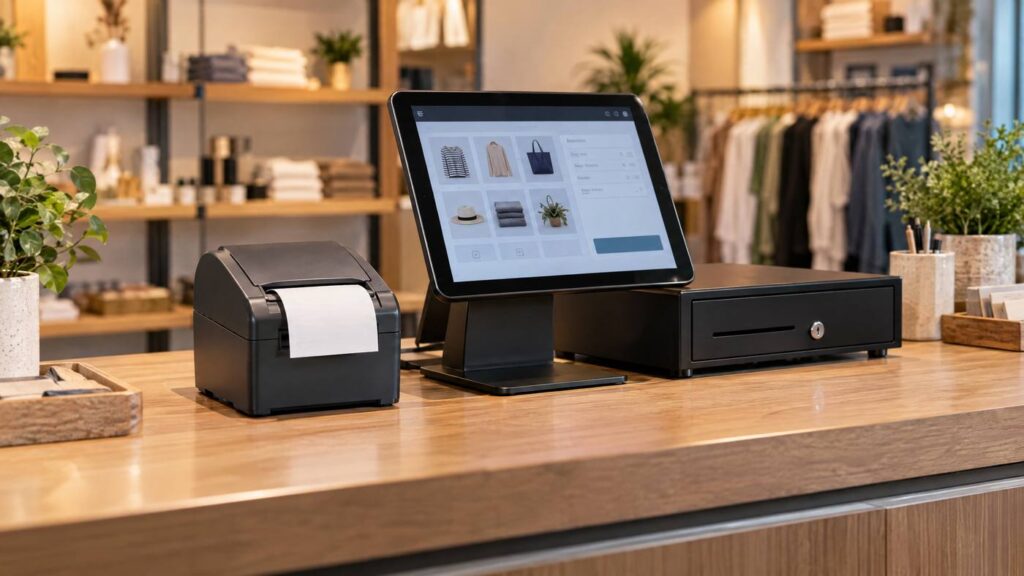
Where the printer fits
POS app → connection → mC-Print3 → receipt
Depending on the model and setup, the printer can also connect with a cash drawer or other supported equipment.
Plan the setup in three steps
- Start with the POS. Check whether the software supports the exact mC-Print3 model.
- Choose the connection. Options can include USB, Ethernet, Bluetooth, or WLAN. Availability depends on the model.
- Place the equipment. Leave room to change paper and reach cables, the cash drawer, and the POS screen.

Common setup checks
- For retail, test receipt printing and any supported cash-drawer connection.
- For tablet checkout, confirm the tablet, printer interface, and POS app work together.
- For online orders, verify that the model and service support the required cloud-printing feature.
Compare another Star option in Local POS Broker’s TSP143IV printer guide. For a dedicated thermal receipt setup, see its Epson TM-T88VII guide.
Explore broader merchant services
A printer is one piece of the POS setup. The Direct Processors’ services page describes a range of merchant services for businesses comparing POS and payment options.
Planning prompt: Before choosing a model, list the devices at your counter and the way each one will connect. Then confirm the full setup with your POS provider.
One Reply to “Star Micronics mC-Print3: How It Fits Into a Modern POS Setup”