
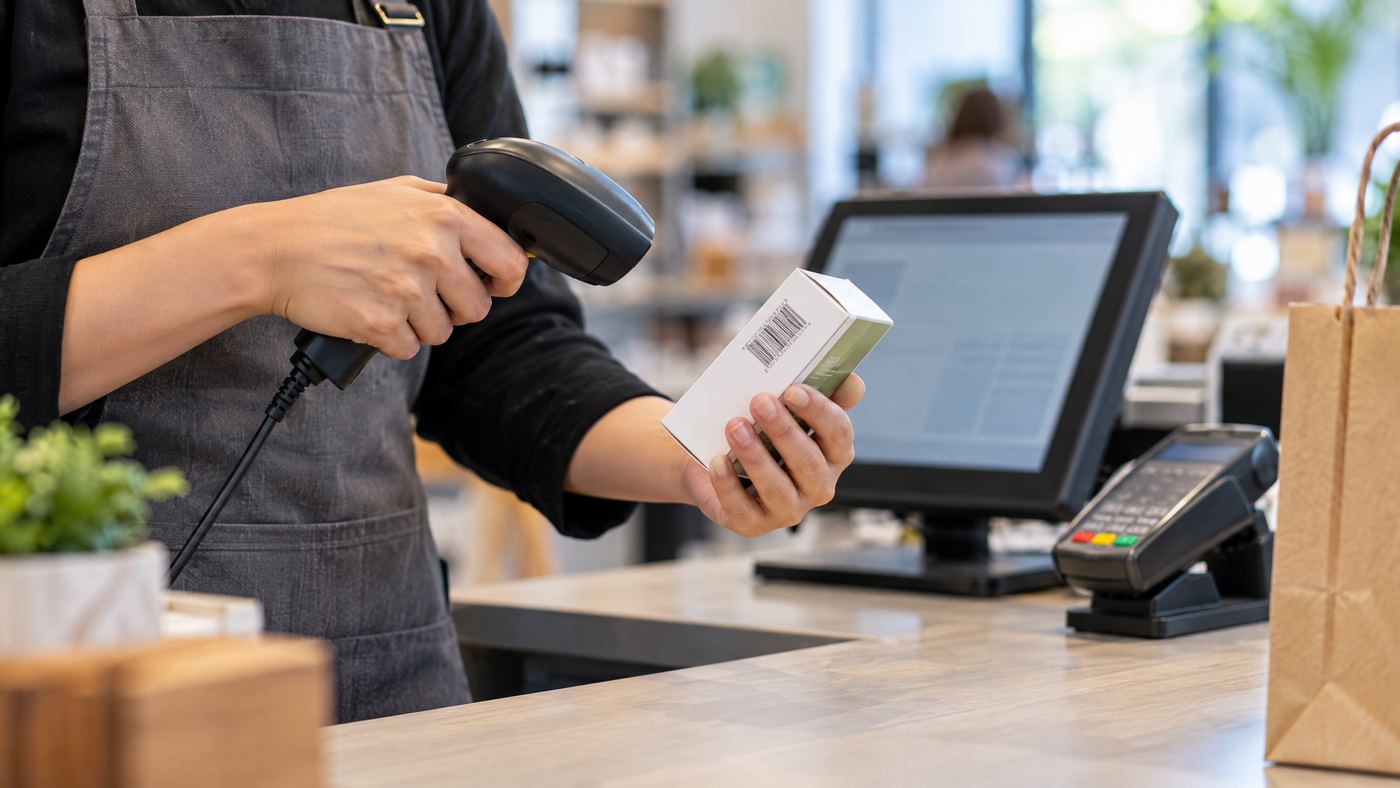
Slow scans can hold up a line. The Honeywell Voyager 1450g reads supported barcodes and sends data to compatible POS software. Then the POS can look up the item and add it to a sale. However, the scanner alone cannot fix damaged labels, missing product records, or a poor setup.

Check these four workflow basics
- Match the barcode. Confirm that your exact Voyager 1450g configuration reads the codes your business uses. Capabilities can vary by configuration.
- Confirm the connection. Check the model, cable, interface, and POS software together before ordering or setup.
- Make scans easy. Keep labels visible and position the scanner within comfortable reach. Also, avoid placing cables across the work area.
- Test real products. Scan common items and supported coupons. Then verify that the POS selects the right product, price, and record.
Look at the whole checkout
A reliable scan needs a matching product record and a responsive POS. Therefore, check the scanner window and cable if performance changes. Also review software settings before replacing hardware.
Compare other options in Local POS Broker’s Zebra DS2208 2D scanning guide, Datalogic QW2120 1D scanner guide, and Honeywell Granit 1991i rugged scanner guide.
Plan the payment side, too
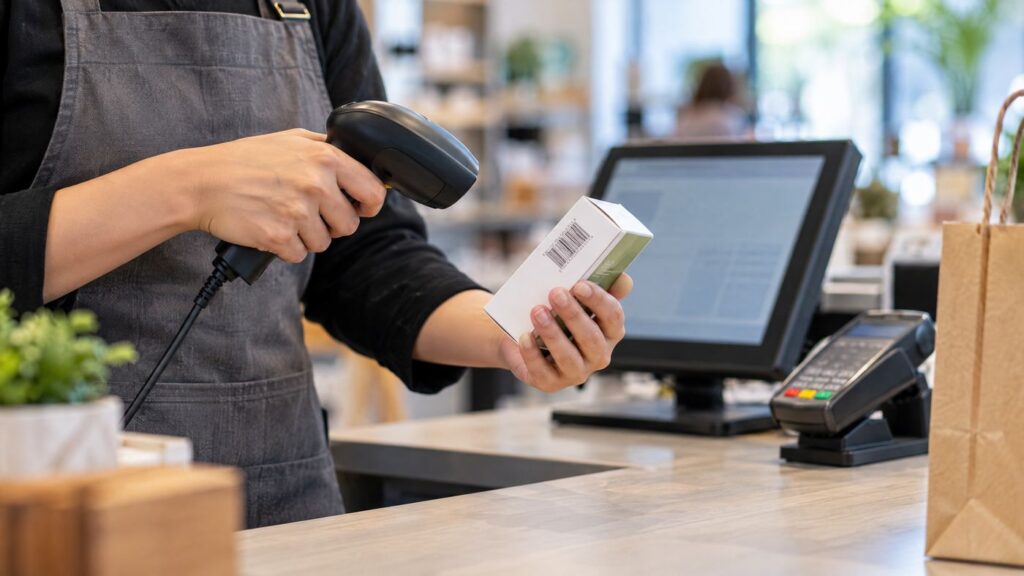
A scanner handles product data, while payment services complete the sale. For a broader view, explore merchant services and payment options when comparing checkout needs.Before opening: Scan five everyday products, confirm each item and price, and run one test sale through receipt printing. Fix any mismatch before the queue builds.
One Reply to “Slow Barcode Scanning? How the Honeywell Voyager 1450g Can Improve Checkout Workflows”
Comments are closed.